There are times when you will want to customize one bypass at a time or several bypasses, but not all bypasses in a line layer. The Customize Line Bypass tool allows you to customize one bypass, or several, on one or more lines.
The Bypass option is dependent upon the layout page units. The Aviation Line Bypass tool uses the data frame reference scale to determine the Bypass size in page or map units to maintain consistency throughout the page layout.
- Start ArcMap.
- Open the working MXD and switch the MXD to layout view if necessary.
- Change the Map Scale at the top of the MXD to match the reference scale of the data frame. Do the following to locate the data frame reference scale:
- Right-click on the data frame and click Properties.

- Click the General tab on the Data Frame Properties dialog box.

- Copy the reference scale.
- Click OK.
- Paste the reference scale value into the Map Scale text box.

- Right-click on the data frame and click Properties.
- On the main menu, click Customize > Toolbars > Aviation Editing.
- Select at least one feature in a cartographic line layer.
- Click the Customize Line Bypass button
 on the Aviation Editing toolbar.
The Customize Line Bypass dialog box appears.
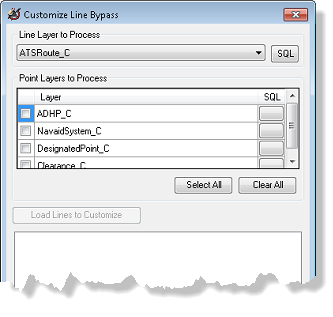
- If necessary, click the drop-down arrow for Line Layer to Process and choose a layer.
- Optionally, click the SQL button to change or add to the definition query set on the selected line feature class.
- Check the check box next to the point layer you want to process.
- Click Load Lines to Customize.
The lines and points selected appear in the area under Load Lines to Customize. You can choose to customize all the points on one line, or individual points.
- Click the parent line, or one or more points that you want to customize.
The data frame zooms in to the line or point you chose so you can preview the changes you make.
- Click the Units drop-down arrow and indicate what units to use for the radius.
The units are inches, millimeters, centimeters, and points. Millimeters is the default. The radius will update when you change the unit type.
Once you modify the units, radius, or flip the bypass, it will show as bold in the tree view of the Customize Line Bypass dialog box.
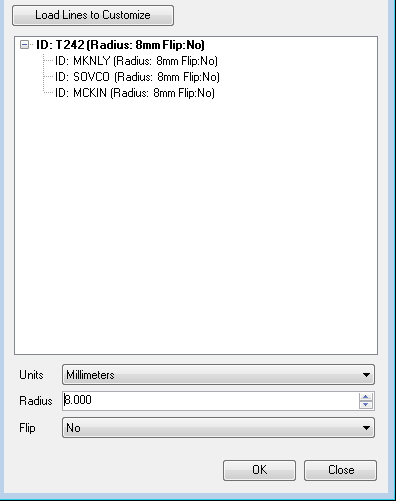
- Click the Radius cell, type a value for the feature's radius, and press Enter.
- If necessary, click the Flip field to indicate whether the bypass should be flipped.
- Klicken Sie auf OK.
- Your data is updated with the changes you made to the bypasses. A results window appears as the tool finishes processing.