Mit der Production Mapping-Lizenz verfügbar.
Elevation points are often used to represent the highest and lowest points within a contour line. With the Create Elevation Point From Contour tool, you can generate elevation points that represent the highest point or lowest point on a contour or both. The point features are created in the specified point layer. The height values are generated based on the elevation values from an underlying digital elevation model (DEM).
When you choose to create both the highest and lowest points on the contour, two point features are created at the highest and lowest points in the contour, respectively.
The layer you choose as the spot elevation point layer must contain a field for storing the elevation value. By default, this field is set to be the ZV2 field. You can use the Contour Field Name Options tool to change the elevation field name.
- Start ArcMap.
- Load an elevation point layer and contours in the map.
- On the main menu, click Customize > Toolbars > Production Editing.
- On the main menu, click Customize > Toolbars > Production Contouring.
- Click the Production Start Editing button
 on the Production Editing toolbar.
- Click the Create tab on the Manage Features window.
- Choose the template for the elevation points.
This is typically named ElevP.
- Select the contour for which you want to generate elevation points.
- Click the Create Elevation Point From Contour button
 on the Production Contouring toolbar.
The Create Elevation Point from Contour dialog box appears with the Generate Highest Elevation Point check box checked.
When the Generate Highest Elevation Point check box is checked, a point is created that represents the highest point on the selected contour; this is the default.
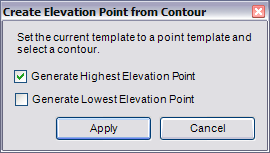
- If necessary, check the Generate Lowest Elevation Point check box.
When the Generate Lowest Elevation Point check box is checked, a point is created that represents the lowest point on the contour.
- Click Apply.
The new point(s) are created and selected in the map.
- Click Cancel.