In this exercise, you will create a study area and add businesses to the entire United States.
-
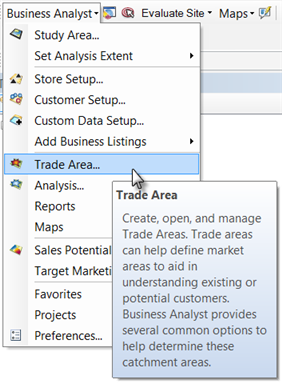
Click Business Analyst on the toolbar and click Study Area.
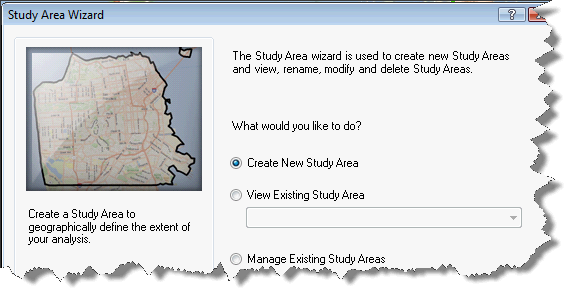
- On the Study Area Wizard dialog box, select Create New Study Area and click Next.
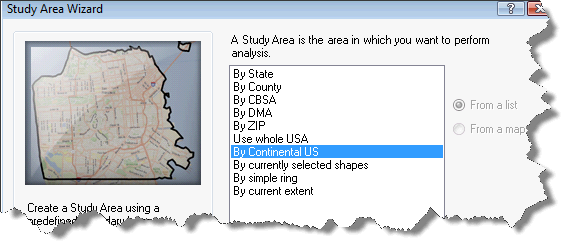
- On the Study Area Wizard dialog box, click By Continental US and click Next.
- On the Study Area Wizard dialog box, type By Continental US in the What do you want to name the new Study Area? text box.
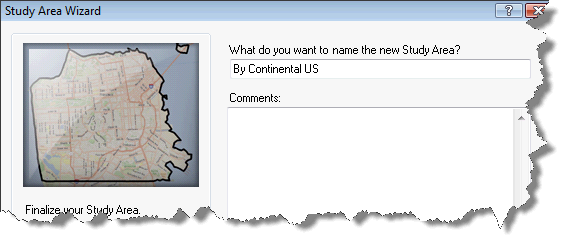
- Click Finish.
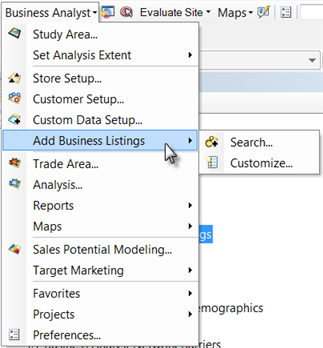
- Click Business Analyst on the toolbar, click Add Business Listings and click Search.
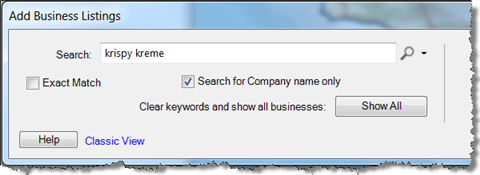
- On the Add Business Listings dialog box, type Krispy Kreme in the Search text box and click Go.
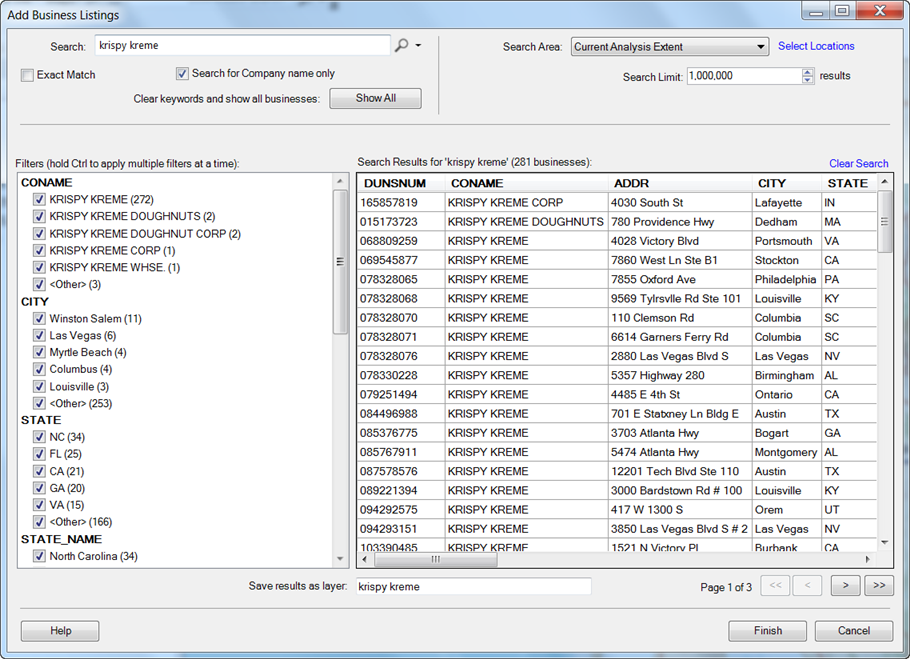
- Under Business Name section, click KRISPY KREME as shown in the image below and click Finish.
The study area is added to the map. The new layer is saved in the Business Analyst window as shown below. The active study area is outlined with a thick black border. Further analysis in the tutorial will be limited to the continental United States. 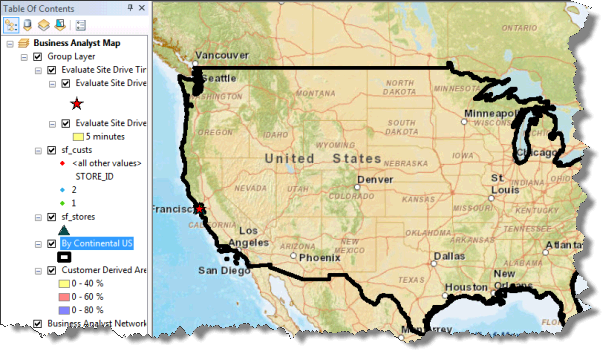
Now that you have defined the study area, you will add the business listings to the map. Adding businesses allows you to see your competitor's locations or help determine the economic impact of certain industries in an area. To complete this exercise, you will load nationwide grocery store locations for Krispy Kreme.
The Add Business Listings dialog box appears with results for the search and provides filtering options to limit your search. For the purpose of this tutorial, you will filter by name.
The business listing locations are added to the map. The new layer is saved in the Project Explorer under Custom Data.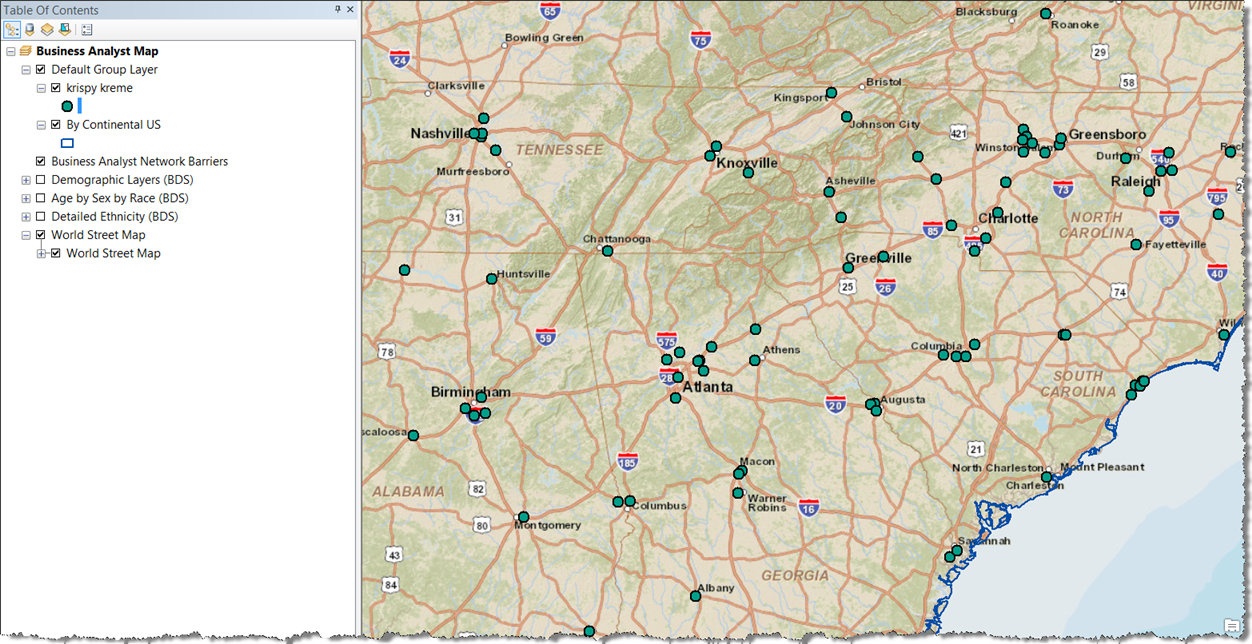
Click Exercise 6: Creating simple ring trade areas and a spatial overlay to go to the next exercise.