You can add other attribute names to the Area, Height, Length, and Width lists on the Attributes tab. Once added, the attributes populate with the area, height, length, and width values for features, as appropriate. For example, if you add the ARA_ attribute to the Area list on the Attributes tab, it can populate using the Buildings tool.
Below is a list of the different tools that calculate attribute values and the types of attributes they populate. When you add fields to the lists on the Attributes tab, those attributes can be used in addition to the default values in each list.
| Tool name | Angle | Area | Height | Length | Width |
|---|---|---|---|---|---|
Buildings | X | X | X | X | |
Calculate Height | X | ||||
Calc Metrics | X | X | X |
- Start ArcMap.
- On the main menu, click Customize > Toolbars > Defense Mapping.
- On the Defense Mapping toolbar, click Defense Mapping > Options.
The Property Configuration dialog box appears.
- If necessary, click the Configuration File drop-down arrow and choose the file that has the configuration settings you want to modify.
- Click the Attributes tab.
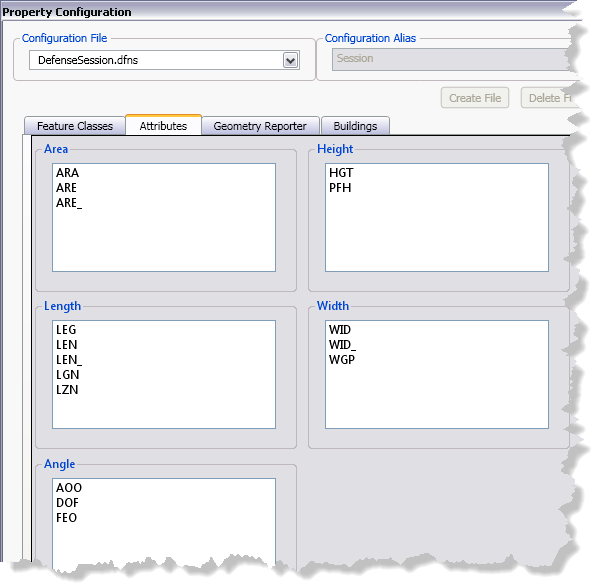
- Right-click in the list to which you want to add a new attribute name and click Add new attribute.
A text box appears in the list.
- Type the name of the attribute in the text box.
- Press the TAB key.
- Repeat steps 6–8 as needed.
- Click OK.