ArcGIS for Desktop

  • Documentation
  • Pricing
  • Support

  • My Profile
  • Help
  • Sign Out
ArcGIS for Desktop

ArcGIS Online

The mapping platform for your organization

ArcGIS for Desktop

A complete professional GIS

ArcGIS for Server

GIS in your enterprise

ArcGIS for Developers

Tools to build location-aware apps

ArcGIS Solutions

Free template maps and apps for your industry

ArcGIS Marketplace

Get apps and data for your organization

  • Documentation
  • Pricing
  • Support
Esri
  • Sign In
user
  • My Profile
  • Sign Out

Help

  • Home
  • Get Started
  • Map
  • Analyze
  • Manage Data
  • Tools
  • More...

Removing bathymetry data from the BIS geodatabase

Datasets that are registered with the BIS geodatabase can be removed from it. Only users with Data Owner privileges on the BIS geodatabase can remove bathymetric data. If working in a multiuser environment, it is strongly recommended that only one person at a time remove bathymetry data from the BIS geodatabase. Only unreferenced datasets can be removed from the BIS, that is, those datasets that are not part of a surface model or version. Any referenced dataset cannot be removed. Some common situations when this may be considered appropriate are the following:

  • The dataset was erroneously added.
  • The dataset is no longer in use or required by your organization.
  • The dataset has errors in it that need to be corrected before readding it to the BIS.

Note:

Removing a bathymetry dataset from the BIS does not delete the physical data from the disk. For example, if you had previously registered a dataset named NewYork.tif with the BIS, removing it will only unregister it from the BIS, but the actual TIFF file will remain on disk until you choose to manually delete it.

  1. Start ArcMap.
  2. On the main menu, click Customize > Toolbars > Bathymetry.
  3. Click the Explore Bathymetry button Explore Bathymetry on the Bathymetry toolbar.

    The Explore Bathymetry window appears. The right side of the window lists all bathymetry datasets from the active BIS geodatabase.
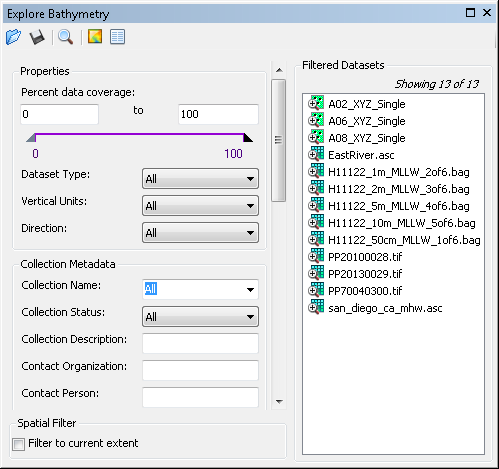
    Explore Bathymetry window
  4. Click to select one or more datasets you want to remove.
  5. Right-click the selected dataset and click Remove from BIS to remove the dataset from the BIS.
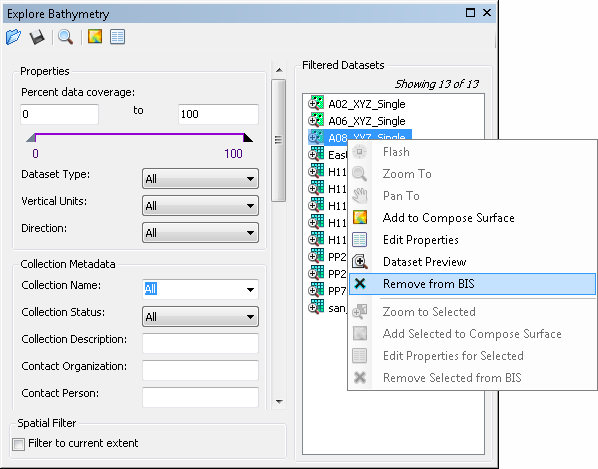
    Remove from BIS command
    Tip:

    If more than one dataset is selected, click the Remove Selected from BIS command.

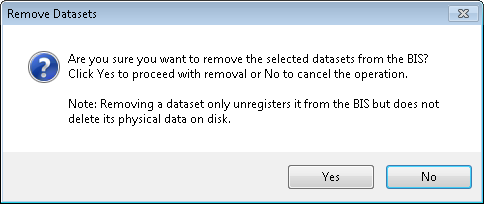
    The following message appears.

    Remove datasets message

  6. Click Yes to confirm you want to remove one or more datasets.

    Once the process is complete, a message appears.
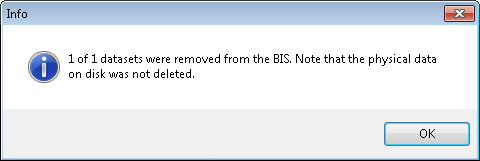
    Message on datasets removed
    Note:

    Datasets will not be removed if they participate in surface models, previous versions of surface models, or if they are currently added to the Compose Surface window.

    It is recommended that the Diagnose BIS tool be run once all the removal of datasets is complete so the Bathymetric Data Index can be refreshed for accurate visualization of data registered with the BIS.

Related Topics

  • Adding bathymetry data to the BIS geodatabase
Feedback on this topic?

ArcGIS for Desktop

  • Home
  • Documentation
  • Pricing
  • Support

ArcGIS Platform

  • ArcGIS Online
  • ArcGIS for Desktop
  • ArcGIS for Server
  • ArcGIS for Developers
  • ArcGIS Solutions
  • ArcGIS Marketplace

About Esri

  • About Us
  • Careers
  • Insiders Blog
  • User Conference
  • Developer Summit
Esri
© Copyright 2016 Environmental Systems Research Institute, Inc. | Privacy | Legal