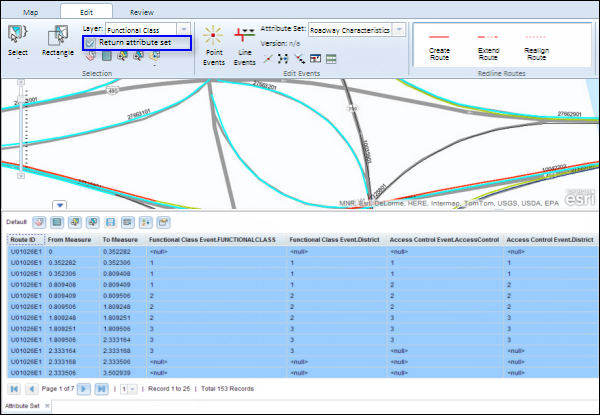
You can edit tabulated results of an attribute query set using the Return Attribute Set option with the tools shown in the following table. This utility is especially useful for editing existing events together in a single table that is physically modeled in separate event tables or feature classes.
For more information, see Selecting an attribute set as results.
| Icon | Tool | Description |
|---|---|---|
 | Clear Map Highlights | Clear all the event highlights on the map |
 | Select All | Highlight all the selected events |
 | Zoom To Highlighted Features | Zoom to highlighted events on the map |
 | Zoom To Selected Features | Zoom to selected events on the map |
 | Save Changes | Save the edits made in the event table |
 | Export Results to CSV File | Export the selected records to a CSV file |
 | Advanced Table Sorting | Sort the results table using advanced options |
 | Table Properties | Configure measure length and navigation to highlighted results |
Editing individual records
This experience supports editing events from multiple event tables or feature classes that are dynamically segmented together.
- Double-click a cell in the table to allow the value to be edited, and change the value.
If a message appears that is related to acquiring locks, the need to reconcile, or not being able to acquire locks, and so on, then Roads and Highways conflict prevention is enabled. For more information about these messages, see Conflict prevention in the Roadway Characteristics Editor.
- Click the Save Changes button to make the changes to the cells in the table permanent.
A Save Options dialog box appears.
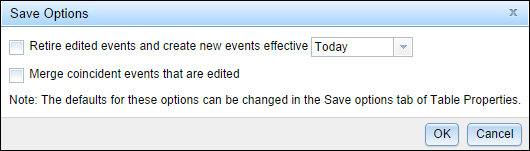
- Click an option in the Save Options dialog box depending on the following:
- If the edits are for error correction or a similar workflow, the event record does not need to be retired and time sliced since the changes are correcting a mistake. In this case, the Retire edited events and create new events effective from the selected date check box should be left unchecked.
- If the edits to event records represent changes to the events at a certain time (such as a speed limit changing from 50 to 55 on 09/22/2014), the Retire edited events and create new events effective check box should be checked for the date the old event should be retired and the new event should begin.
- If multiple events that are edited are coincident in measure and attributes, and you want to combine them into a single event record, check the Merge coincident events that are edited check box. Any coincident events that are edited will be merged.
- To keep events coincident in measure and attributes as different event records, do not check the Merge coincident events that are edited check box.
- Click OK.
The results of an attribute set query may not be segmented in the database in the manner they are presented in the table. Consequently, editing a cell can have one of the following effects:
- A new event record is created if the original value in the cell was null.
- The existing event record is lengthened or shortened if the value edited is the same value as another record coincident in measure with the same attributes.
- The existing record is split if the value is edited in a cell and the cell does not represent the measure for the entire record in the database.
- If a new record is created, the start date of that record is the retired date selected in the Retire edited events and create new events effective option from the selected date; otherwise it is the start date of the route.
- If two or more event records are merged, any one of the EventID is used when the Merge coincident events that are edited option is checked but the Retire edited events and create new events effective option is not checked.
Configuring table properties
The Table Properties button allows you to configure the columns, navigation and saving properties
Configuring columns
You can configure the column display in the attribute table.
- Click the Table Properties button to open the Table Properties dialog box.
The Columns tab is displayed by default.
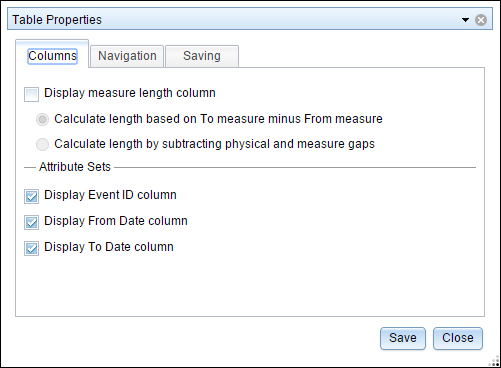
- Check the Display measure length column check box to display the measure length field in the attribute table.
- Select the method by which you want to calculate length.
- Calculate length based on To measure minus From measure
- Calculate length by subtracting physical and measure gaps
- Click Save.
- Click Close.
Configuring navigation
To set your navigation properties to center the map on highlighted records, perform the following steps:
- Click the Table Properties button to open the Table Properties dialog box.
- Click the Navigation tab.
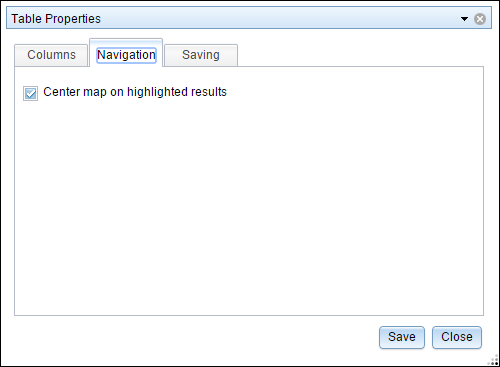
- Check the Center map on highlighted results check box.
- Click Save.
- Click Close.
Configuring save options
To set your save options properties, perform the following steps:
- Click the Table Properties button to open the Table Properties dialog box.
- Click the Saving tab.
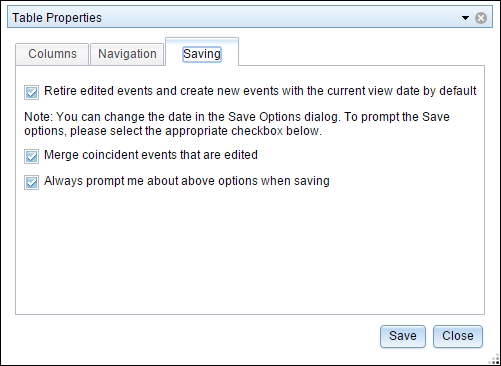
- If you want the edited events to be retired, and a new event record to be created for the attribute changes, check the Retire edited events and create new events with current view date by default check box. If the edited events are for error correction, or you do not want the events retired when you make changes, do not check this check box.
- If the events being edited are coincident to be merged into a single event record, check the Merge coincident events that are edited check box. If you do not want coincident events that are being edited to be merged into a single event record, do not check this check box.
- If you want to be prompted about the options in steps 3 and 4 (retiring edited events and merging edited events) each time changes in the selection table are saved, check the Always prompt me about above options when saving check box. If you do not want to be prompted when saving edits, uncheck the check box.
- Click Save.
- Click Close.