ArcGIS for Desktop

  • Documentation
  • Pricing
  • Support

  • My Profile
  • Help
  • Sign Out
ArcGIS for Desktop

ArcGIS Online

The mapping platform for your organization

ArcGIS for Desktop

A complete professional GIS

ArcGIS for Server

GIS in your enterprise

ArcGIS for Developers

Tools to build location-aware apps

ArcGIS Solutions

Free template maps and apps for your industry

ArcGIS Marketplace

Get apps and data for your organization

  • Documentation
  • Pricing
  • Support
Esri
  • Sign In
user
  • My Profile
  • Sign Out

Help

  • Home
  • Get Started
  • Map
  • Analyze
  • Manage Data
  • Tools
  • More...

Exercise 2: Designing a new task assistant workflow

Complexity:
Beginner
Data Requirement:
ArcGIS.com
Goal:
Learn how to create a new Task Assistant Manager workflow.

In this exercise, you are going to start designing a task assistant workflow by adding a task assistant workflow node.

  1. Click the New Workflow button New Workflow on the Task Assistant window.

    A new workflow node appears.

  2. Click to highlight the node.
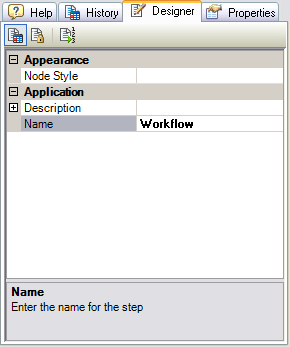
  3. Click the Designer tab.

    Designer tab

  4. Click the cell next to Name, double-click the existing text, then type New House and Driveway.
  5. Press the ENTER key.

    The task assistant workflow appears as follows:

    Step 5 results

A new workflow has been added to Task Assistant Manager. To proceed to the next exercise, click Exercise 3: Adding a step with navigation tools.

Feedback on this topic?

ArcGIS for Desktop

  • Home
  • Documentation
  • Pricing
  • Support

ArcGIS Platform

  • ArcGIS Online
  • ArcGIS for Desktop
  • ArcGIS for Server
  • ArcGIS for Developers
  • ArcGIS Solutions
  • ArcGIS Marketplace

About Esri

  • About Us
  • Careers
  • Insiders Blog
  • User Conference
  • Developer Summit
Esri
© Copyright 2016 Environmental Systems Research Institute, Inc. | Privacy | Legal