ArcGIS for Desktop

  • Documentation
  • Pricing
  • Support

  • My Profile
  • Help
  • Sign Out
ArcGIS for Desktop

ArcGIS Online

The mapping platform for your organization

ArcGIS for Desktop

A complete professional GIS

ArcGIS for Server

GIS in your enterprise

ArcGIS for Developers

Tools to build location-aware apps

ArcGIS Solutions

Free template maps and apps for your industry

ArcGIS Marketplace

Get apps and data for your organization

  • Documentation
  • Pricing
  • Support
Esri
  • Sign In
user
  • My Profile
  • Sign Out

Help

  • Home
  • Get Started
  • Map
  • Analyze
  • Manage Data
  • Tools
  • More...

Adding job notes

Available with Standard or Advanced license.Available with Workflow Manager license.

The Job Notes tab is an arbitrary text area that can be used to enter any text that you want, including pasting an entire document into the text area.

Job notes have been partially superseded by attachments. See attachments Managing attachments for more details.
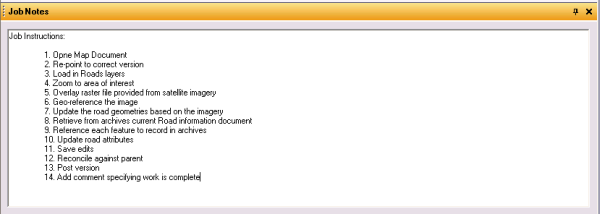
Job Notes tab
Note:

This functionality is controlled through privileges. If you are unable to interact with this tab, please consult your ArcGIS Workflow Manager for Desktop administrator. Job notes cannot be added in offline jobs.

  1. Select a job.
  2. Click Job Notes tab.
  3. Enter or change the text in the text box on the Job Notes tab.
  4. Click the Save button Save on the Workflow Manager toolbar.
Feedback on this topic?

ArcGIS for Desktop

  • Home
  • Documentation
  • Pricing
  • Support

ArcGIS Platform

  • ArcGIS Online
  • ArcGIS for Desktop
  • ArcGIS for Server
  • ArcGIS for Developers
  • ArcGIS Solutions
  • ArcGIS Marketplace

About Esri

  • About Us
  • Careers
  • Insiders Blog
  • User Conference
  • Developer Summit
Esri
© Copyright 2016 Environmental Systems Research Institute, Inc. | Privacy | Legal