Available with Workflow Manager license.
The Linked Properties tab contains custom properties specific to your organization's business needs, as configured by your Workflow Manager administrator. The tab allows you to add, delete, view, and update (where applicable) 1–M properties. 1–M means that there can be any number of records in each configured table for each job. For 1–1 relationships between jobs and custom properties, see the Extended Properties tab.
See Extended Properties in the Jobs Types book for more information about the extended properties.
Clicking the Linked Properties tab when a job is selected in the job list shows something similar to the figure below. The tab may appear named something else, depending on the configuration.
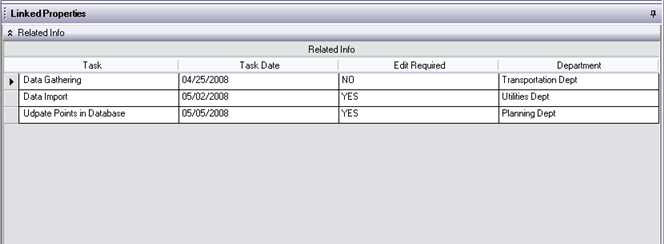
The linked properties tables are displayed in a tabular view. When a job is created, the linked properties view is empty. Records have to be added to the view.
Adding a linked property record to the job
You can add records through the Linked Properties tab.
- Select a job in the job list view to make it the active job.
- Click the Linked Properties tab.
- Right-click the table fields and click Add.
A new record appears in the table view.
The properties may be populated if the properties have been configured by the Workflow Manager administrator.
- Once you enter the required property, it will appear as a list in the table.
- Click the Save button
 on the Workflow Manager toolbar.
Modifying a linked property record in the job
You can modify existing records through the Linked Properties tab.
- Expand the records in the table view that represent the table that you want to modify a record from.
- Select the record and modify the properties.
- Click the Save button on the Workflow Manager toolbar.
Deleting a linked property record from the job
You can delete records added to a job from the Linked Properties tab.
- Expand the records in the table view representing the table that you want to delete a record from.
- Select the record.
- Right-click the record and click Delete.