Available with Workflow Manager license.
The Extended Properties tab contains custom properties specific to your organization's business needs, as configured by your Workflow Manager administrator. The tab allows you to view and update (where applicable) 1–1 properties. 1–1 means that there will be 1 record in each configured 1-1 table for each job. For 1–M relationships between jobs and custom properties, see Linked Properties tab.
See Extended properties in the Jobs Types book for more information about the extended properties.
Clicking the Extended Properties tab when a job is selected in the job list shows something similar to the figure below. If no extended properties are configured for this job type, then a banner notifying the user of this is shown. This tab may appear by another name, depending on the configuration.
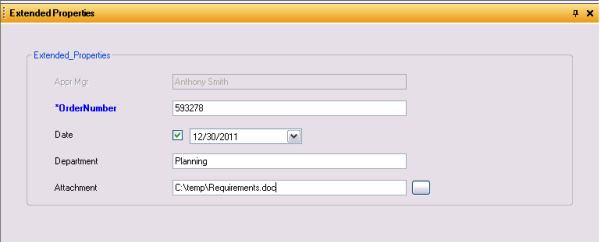
Each of the 1–1 properties configured by the Workflow Manager administrator for this job's type is shown in the Extended Properties dialog box. When a job is created, these properties are populated with the default values that were specified by the Workflow Manager administrator. Properties that are configured as modifiable are shown in editable controls:
- Text/Numeric Fields—Text box
- Dates—Date picker
- Numeric values with domain descriptions—Drop-down list
- Folder—Folder picker
- File—File picker
- Table—Table in Workflow Manager database
- Geographic Dataset—Feature classes
These controls help restrict the user to only entering correct data. For example, the text box will only allow the length of the text entered to be within the size of the field.
After modifying the properties, click the Save button on the Workflow Manager toolbar to store the changes.
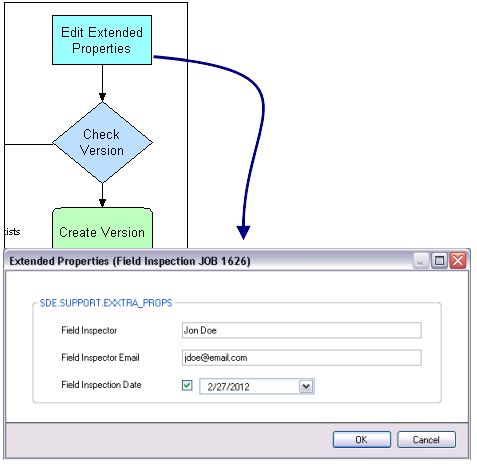
You can set up your workflows to include the Edit Extended Properties step for updating extended properties as part of a job's workflow. This step, when executed, will display a form similar to the extended properties tab for you to enter the required information.