Available with Production Mapping license.
There are times when it is more efficient to work with more than one product at a time, or when other processes within ArcGIS Desktop may require access to the products outside the product library.
- Start ArcMap.
- If necessary, open the Product Library window by clicking Customize > Production > Product Library on the main menu.
A tree view of the product library appears.
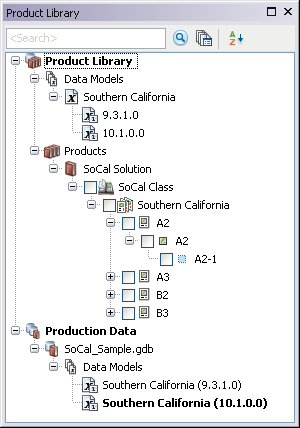
- Expand Product Library and Products.
- Navigate to the series that contains the products you want to check in.
- Right-click the series and click Batch Manage Products.
The Batch Manage Products dialog box appears.
- Confirm that the series contains the products you want to manage.
- Click the Action drop-down arrow and choose Check In.
- Check the check box for each product you want to check in from the Available Products list.
- Click OK.
The Check In Product dialog box appears.
- If necessary, type a description of the changes you made in the Comments text box.
The option to change the file version is not enabled when these actions are performed in batch.
- To keep the .mxd files checked out, check the Keep Checked Out check box.
- If you do not want to keep a copy of the map documents on your machine, uncheck the Keep Local Copy check box.
- Click OK.
The Checking In Product dialog box appears with the progress information.

- Click OK when the process completes.