ArcGIS Desktop

  • ArcGIS Pro
  • ArcMap

  • My Profile
  • Help
  • Sign Out
ArcGIS Desktop

ArcGIS Online

The mapping platform for your organization

ArcGIS Desktop

A complete professional GIS

ArcGIS Enterprise

GIS in your enterprise

ArcGIS Developers

Tools to build location-aware apps

ArcGIS Solutions

Free template maps and apps for your industry

ArcGIS Marketplace

Get apps and data for your organization

  • Documentation
  • Support
Esri
  • Sign In
user
  • My Profile
  • Sign Out

ArcMap

  • Home
  • Get Started
  • Map
  • Analyze
  • Manage Data
  • Tools
  • Extensions

Clearing the product library workspace

Available with Production Mapping license.

Some workflows may require you to switch between various product library workspaces. The Clear Product Library command allows you to easily switch between different product libraries by removing the current workspace so that you can connect to a different workspace by adding data directly to ArcMap.

  1. Start ArcMap.
  2. If necessary, open the Product Library window by clicking Customize > Production > Product Library on the main menu.

    A tree view of the product library appears.
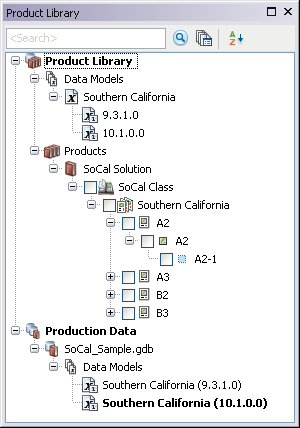
    Product Library tree view
  3. Right-click Product Library and click Clear Product Library.

    A message appears asking you if you are sure you want to remove the product library.

  4. Click OK.

ArcGIS Desktop

  • Home
  • Documentation
  • Support

ArcGIS

  • ArcGIS Online
  • ArcGIS Desktop
  • ArcGIS Enterprise
  • ArcGIS
  • ArcGIS Developer
  • ArcGIS Solutions
  • ArcGIS Marketplace

About Esri

  • About Us
  • Careers
  • Esri Blog
  • User Conference
  • Developer Summit
Esri
Tell us what you think.
Copyright © 2021 Esri. | Privacy | Legal