ArcGIS Desktop

  • ArcGIS Pro
  • ArcMap

  • My Profile
  • Help
  • Sign Out
ArcGIS Desktop

ArcGIS Online

The mapping platform for your organization

ArcGIS Desktop

A complete professional GIS

ArcGIS Enterprise

GIS in your enterprise

ArcGIS Developers

Tools to build location-aware apps

ArcGIS Solutions

Free template maps and apps for your industry

ArcGIS Marketplace

Get apps and data for your organization

  • Documentation
  • Support
Esri
  • Sign In
user
  • My Profile
  • Sign Out

ArcMap

  • Home
  • Get Started
  • Map
  • Analyze
  • Manage Data
  • Tools
  • Extensions

Changing the Default Database in ArcCatalog

Available with Standard or Advanced license.

When there are many ArcGIS Workflow Manager (Classic) database connections configured on a local system, the Workflow Manager (Classic) applications will access the default database connection. This is denoted with a check mark on the connection in the ArcCatalog Workflow Manager (Classic) databases node.

  1. Start ArcCatalog and ensure that the Workflow Manager (Classic) extension is enabled.
  2. Right-click the Workflow Manager (Classic) database node you want to activate and click Set as default database.

    The default database for Workflow Manager (Classic) will be denoted with a check mark.
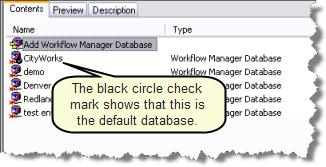
    Default Workflow Manager Database
    The check mark shows which Workflow Manager (Classic) database is the one the client applications will access when open.

ArcGIS Desktop

  • Home
  • Documentation
  • Support

ArcGIS

  • ArcGIS Online
  • ArcGIS Desktop
  • ArcGIS Enterprise
  • ArcGIS
  • ArcGIS Developer
  • ArcGIS Solutions
  • ArcGIS Marketplace

About Esri

  • About Us
  • Careers
  • Esri Blog
  • User Conference
  • Developer Summit
Esri
Tell us what you think.
Copyright © 2021 Esri. | Privacy | Legal