This is the entry point into ArcGIS Workflow Manager (Classic). You can associate specific properties with the jobs. There are four ways that users can create jobs in the Workflow Manager (Classic) application.
- Create New Jobs—The tool allows you to create a single job or multiple jobs by specifying some default job properties.
- Create Jobs using Advanced Options—You can create multiple jobs with the same properties. You can also add attachments to them upon creation.
- Create Jobs spatially—Through the advanced option, you can create jobs spatially by defining one or more Areas of Interest.
- Cloning an existing Job—This tool allows you to create identical copies of a job. These jobs will have the same properties as the jobs they are created from.
Creating a new job
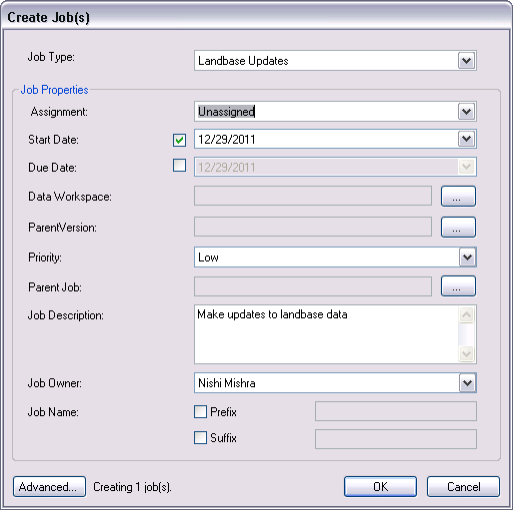
To create a new job from scratch, use the Create Job button  on the Workflow Manager toolbar. The Create Job dialog box will appear, prompting you to verify or modify the default job properties inherited from the job type.
You can set the following properties on the Create Jobs dialog box when creating jobs: Job type, assignment, start and due date, data workspace, parent version, priority, parent job, job description, job owner, and job name. When these properties are set, jobs will automatically contain these attributes when they are created.
- Click the Create Job button .
The Create Job(s) dialog box appears.
- Choose a job type in the Job Type drop-down list on the Create Job(s) dialog box.
- Configure additional properties for the job as necessary.
- Click OK.
A job is created with the specified properties.
Using the advanced options
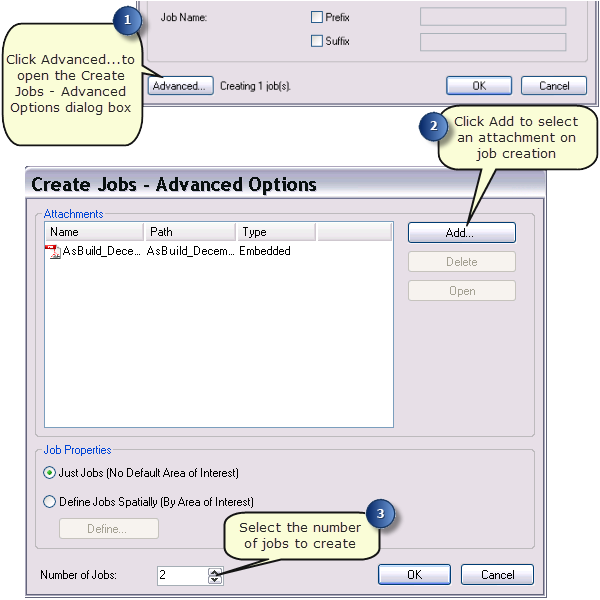
Creating jobs using the advanced option allows you to create multiple jobs with the predefined properties. It also allows you add attachments to your jobs upon creation.
- Click the Create Job button.
The Create Job(s) dialog box appears.
- Choose a job type in the Job Type drop-down list on the Create Job(s) dialog box.
- Configure additional properties for the job as necessary.
- Using the advanced option, you can associate more properties to jobs like attachments and areas of interest and define the number of jobs to create.
Creating a job from a feature class
Jobs can be defined spatially by using a feature class.
- Click the Create Job button .
The Create Job(s) dialog box appears.
- Choose a job type in the Job Type drop-down list on the Create Job(s) dialog box.
- Configure additional properties for the job as necessary.
- Click Advanced.
- Click the Define Jobs Spatially option and click Define.
- Click the Add Data button to browse to a feature class.
- Choose the desired feature class on the Add Data dialog box and click Open.
The feature class is added to the map view.
- Select the new layer added from the list of selectable layers.
- Use the selection tools to select a feature to use as your area of interest.
- Click OK on all the dialog boxes to accept the new boundary and properties.
The job is created, and an area of interest is defined.
Creating jobs from grid
Jobs can be defined spatially by specifying tile size or number of tiles.
- Click the Create Job button .
The Create Job(s) dialog box appears.
- Choose a job type in the Job Type drop-down list on the Create Job(s) dialog box.
- Configure additonal other properties for the job as necessary.
- Click Advanced.
- Click the Define Jobs Spatially option and click Define.
- Use the selection tools to select a feature to use as your area of interest.
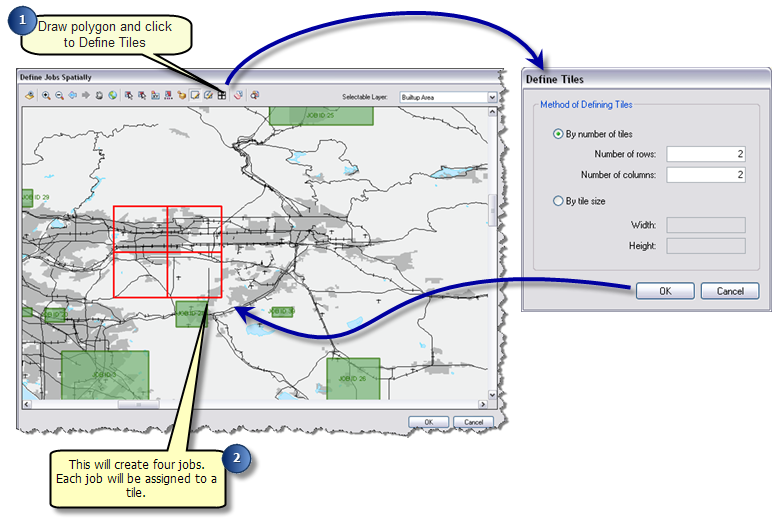
- Use the drawing tools to draw a rectangle or polygon as your area of interest.
- Click the Convert Extent to Grid button.
- To define the grid by number of tiles, do the following:
- Click the By number of tiles option to define tiles by a number of grids.
- Type the number of rows and columns (for example, 2 rows and 2 columns; this will create 4 jobs).
- To define the grid by tile size, do the following:
- Click the By tile size option to define by tile size.
- Specify the Width and Height of the tiles.
- Click OK on all the dialog boxes to accept the new boundary and properties.
The job is created, and an area of interest is defined.
Creating jobs by attributes
Jobs can be defined spatially based on specific attributes.
- Click the Create Job button .
The Create Job(s) dialog box appears.
- Choose a job type in the Job Type drop-down list on the Create Job(s) dialog box.
- Configure additional properties for the job as necessary.
- Click Advanced.
- Click the Define Jobs Spatially option and click Define.
- Use the Select By Attribute tool to define the query.
- Select by Attribute—This tool will allow you select matching features based on the query defined for a single job AOI.
- Select by Attribute for Multiple AOI—This tool will create a job for each feature that satisfies the query defined.
- On the Select By Attribute dialog box, choose the feature class to query from the drop-down list.
- Click the browse (...) button for the query expression
- The query expression building allows you to define a query on which to base your jobs.
SELECT "counties" WHERE State FIP = 48. This will select all the counties of Texas. Depending on the select by attribute tool you use, you will either have one job for the entire state of Texas or multiple jobs for each county in Texas.
- Click OK on all the dialog boxes to accept the new boundary and properties.
The job or jobs are created, and one or more areas of interest are defined.