Available with Standard or Advanced license.
Available with Workflow Manager license.
Default properties allow administrators to seed jobs with consistent properties by job type, and each job thereafter will have default values for certain attributes. For example, you can seed the job description so that it is consistent throughout all jobs of this type. Another example could be setting the job duration, as it's possible that all jobs of a certain type will take two weeks to complete. In this case, upon creation, the job's due date would be set to two weeks after the current date.
The following properties can have default values:
- Assigned To—The user or group the job is assigned to.
- Start Date—The date the job is due to start. You can choose to have the start day always be the day the job was created by using the Creation Day option.
- Job Duration—The number of days the job is expected to last.
- Due Date—The date the job is due to end.
- Data Workspace—The location for the spatial data used for the job.
- Allow Data Workspace To Be Changed—If the data workspace selected is the only valid data source, uncheck this check box. This will prevent users from changing the data workspace in the client application.
- Parent Version—The version that is used to spawn all job versions.
- Priority—The importance of the job.
- Job Description—A description of the job.
How to configure default properties
- Open Workflow Manager Administrator and connect to your Workflow Manager (Classic) database.
- In Workflow Manager Administrator, browse to the JobTypes folder under Job Components.
- Right-click the JobTypes folder and click Add Job Type.
The Job Type Properties dialog box appears.
- Click the Default Properties tab on the Job Types dialog box and enter the properties as necessary.
If the check box next to Start Date or Due Date is not checked, this value will not be used.
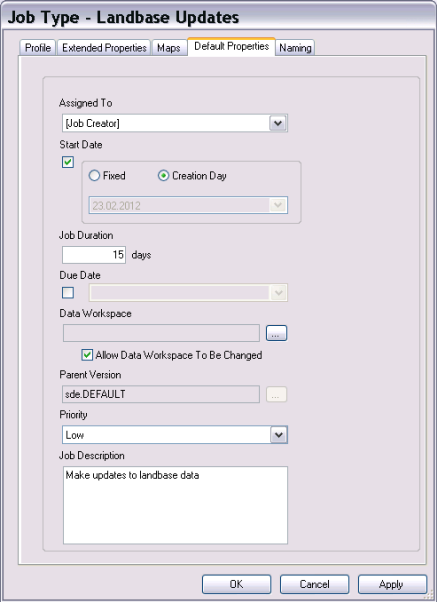
Predefine some job properties by setting them as the default properties of the job type.