Available with Workflow Manager license.
The Job Properties tab contains many attributes of the job that can be manipulated, such as job name, assignment, start and due dates, priority, status, and description.
The Job Properties tab is displayed by default when Workflow Manager (Classic) is opened and a job is chosen.

There are some static properties on the Job Properties tab. These include the job ID, who created it and when, and the job type. These properties are not editable after the job is created.
Modifying ownership properties
The General tab lists Job Owner, Job Name, Priority, Parent Job, and Assignment. These are all editable properties.
- Choose a job owner from the Job Owner drop-down list.
- Type a name in the Job Name cell to modify the job name as it's shown in the main application.
- Choose a priority from the Priority drop-down list.
- Click the Parent Job button to specify a parent job.
- Click the By Job ID option and enter a job ID or click the From Job List option to choose a parent job from a list of all jobs.

- Assign the job to an individual or a group by choosing either the User or Group option and choosing the value from the drop-down list.
- Assign the job to the current individual by clicking the Assign Job To Self button
 .
. - Click the Save button
 on the Workflow Manager toolbar to apply the changes to the job properties.
Modifying date properties
The Dates tab lists the dates associated with the job, such as start date, due date, started, and ended date. These are all editable properties.
- You can set a start date or due date for the job by checking either the Start Date or Due Date check box.
- Use the date controls to set the date.

- Click the Save button to apply the changes to the job.
Modifying data workspace properties
The Data Workspace tab lists the data workspace from which spatial data for the job will be retrieved. These properties displayed are all editable properties.
- Click the browse button (...) next to the Data Workspace text box to display a list of data workspaces configured in the system.
- Choose the workspace from the list on the Select Workspace dialog box and click OK.
Note that the parent version designated for this geodatabase is automatically displayed.
- Click the Save button .
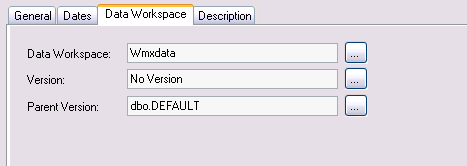
- To create a new version for this job, click the browse button (...) next to the Version text box.
The Manage Version dialog box appears.
- You can choose an existing version or create a new one.
- Once you have chosen a version, click the Save button .
Modifying the job description
The Description tab displays the description of the job. This information can be updated to provide more information about the job.
- Click the Description tab.
- Type a description in the Description text box.
- Click the Save button on the Workflow Manager toolbar to apply the changes to the job properties.