ArcGIS Desktop

  • Documentación
  • Soporte

  • My Profile
  • Ayuda
  • Sign Out
ArcGIS Desktop

ArcGIS Online

La plataforma de representación cartográfica para tu organización

ArcGIS Desktop

Un completo SIG profesional

ArcGIS Enterprise

SIG en tu empresa

ArcGIS for Developers

Herramientas para crear aplicaciones basadas en la ubicación

ArcGIS Solutions

Plantillas de aplicaciones y mapas gratuitas para tu sector

ArcGIS Marketplace

Obtén aplicaciones y datos para tu organización.

  • Documentación
  • Soporte
Esri
  • Iniciar sesión
user
  • Mi perfil
  • Cerrar sesión

ArcMap

  • Inicio
  • Introducción
  • Cartografiar
  • Analizar
  • Administrar datos
  • Herramientas
  • Extensiones

Applying data frame rules

Data frame rules control rotation, scale, extent, coordinate system, and size of a data frame. The Apply Data Frame Rules dialog box allows you to save and import preconfigured data frame rules.

You load and apply data frame rules from an XML file. You can also apply data frame rules to a product during checkout. This enables more dynamic behavior in map products. To apply data frame rules to a product during checkout, click Options in the Check Out dialog box.

  1. Start ArcMap.
  2. Switch to layout view.
  3. On the main menu, click Customize > Toolbars > Production Cartography.
  4. Click the Layout window button Layout window on the Production Cartography toolbar.

    The Layout window appears.

  5. On the Layout window, click the data frame you want to apply the rules to.
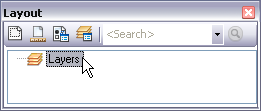
    Layout window with data frame selected
  6. Click the Apply Data Frame Rules button Apply Data Frame Rules on the Layout window.

    The Apply Data Frame Rules dialog box appears.

  7. If necessary, click the Source Data Frame drop-down arrow and choose the source data frame.
  8. Nota:

    Choosing a source data frame is only necessary if the Same as source data frame option is saved within the XML file.

  9. Click Open.

    The Import Rules dialog box appears.

  10. Navigate to the <data frame rules>.xml file you want to use.
  11. Click Open.

    The Apply Data Frame Rules dialog box appears.

  12. If necessary, check or uncheck the Show Status Window check box.

    Nota:

    If the Show Status Window check box is checked, the Status - Data Frame Rules dialog box displays the status of the rules being applied to the data frame.

  13. Click Apply.
  14. Click Cancel to close the Apply Data Frame Rules dialog box.

Temas relacionados

  • Checking out a product
  • Saving data frame rules
  • Clearing data frame rules

ArcGIS Desktop

  • Inicio
  • Documentación
  • Soporte

Plataforma ArcGIS

  • ArcGIS Online
  • ArcGIS Desktop
  • ArcGIS Enterprise
  • ArcGIS for Developers
  • ArcGIS Solutions
  • ArcGIS Marketplace

Acerca de Esri

  • Quiénes somos
  • Empleo
  • Blog interno
  • Conferencia de usuarios
  • Cumbre de desarrolladores
Esri
Díganos su opinión.
© Copyright 2016 Environmental Systems Research Institute, Inc. | Privacidad | Legal