You configure data frame rules using the Data Frame Rules dialog box. You load data frame rules by importing rules from a data frame rules .xml file. These rules persist in the dialog boxes until you reset them.
You can reset your data frame rules by clicking Clear All on the Apply Data Frame Rules dialog box. This clears any preconfigured rules set within the Apply Data Frame Rules and Data Frame Rules dialog boxes. This is useful when creating and saving multiple data frame rules in a sequence.
- Start ArcMap.
- Switch to layout view.
- On the main menu, click Customize > Toolbars > Production Cartography.
- Click the Layout window button
 on the Production Cartography toolbar.
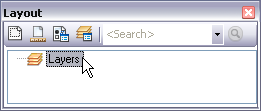
The Layout window appears.
- In the Layout window, click the data frame to which you want to apply rules.
- Click the Apply Data Frame Rules button
 on the Layout window.
The Apply Data Frame Rules dialog box appears.
- If necessary, click the Source Data Frame drop-down arrow and choose the source data frame.
- Click the Properties button
 .
.The Data Frame Rules dialog box appears.
- Configure your data frame rules and click OK.
Learn more about configuring data frame rules for a single data frame
Learn more about configuring data frame rules for multiple data frames
- Click Clear All on the Apply Data Frame Rules dialog box.
The drop-down list in the Data Frame Rules area changes to <Default Rules>.
- If necessary, configure your next set of data frame rules.
- If necessary, click Save to save your data frame rules.
- Click Cancel to close the Apply Data Frame Rules dialog box.