Disponible con licencia de Production Mapping.
You can replace a definition query across a definition query set to restrict ArcMap to only show the features that are relevant.
- Inicie ArcMap.
- Define a definition query set.
The definition query displays in the Single query (selected item) text box.
- Copy and paste the definition query to the Multiple definition queries (checked items) text box.
- In the Feature Layers list, check the check boxes next to the feature layers for which you want to update the definition query.
- Click Replace.
A message appears that indicates which feature layers have had their definition queries replaced.
- Click OK.
- Click Save As.
A message appears notifying you that the definition queries you want to save have not been applied to the map or verified.
- Click Yes to continue with the saving process.
The Feature Display Settings dialog box appears.
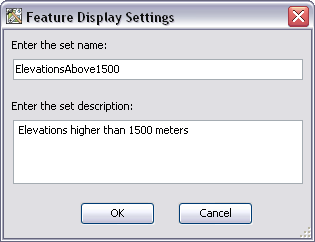
- Type a name for the new definition query set in the Enter the set name text box.
- Type a description for the new definition query set in the Enter the set description text box.
- Click OK.
The Definition Queries tab appears. The status of the definition queries for each feature layer is indicated by the color of the feature layer name.
- Black—The feature layer will display using a definition query that already exists on the layer in the current MXD.
- Red—The feature layer is included in the definition query set but is not loaded in the table of contents.
- Blue—The definition query has been applied to the feature layer or updated and is also saved on the Definition Queries tab on the Layer Properties dialog box in ArcMap.
- Click the Close button
 to close the Feature Display Settings dialog box.