Disponible con licencia de Production Mapping.
Once the definition query sets are created, they can be updated as necessary. This includes the ability to only update selected feature layers with the modified definition queries.
- Inicie ArcMap.
- Add the Feature Display Settings tool in ArcMap by doing the following:
- On the main menu, click Customize > Toolbars > Customize.
The Customize dialog box appears.
- Click the Commands tab. In the Categories list, choose Production Cartography.
- In the Commands list, choose Feature Display Settings.
- Drag the Feature Display Settings tool
 onto any toolbar.
- On the main menu, click Customize > Toolbars > Customize.
- Click the Feature Display Settings button .
The Feature Display Settings dialog box appears.
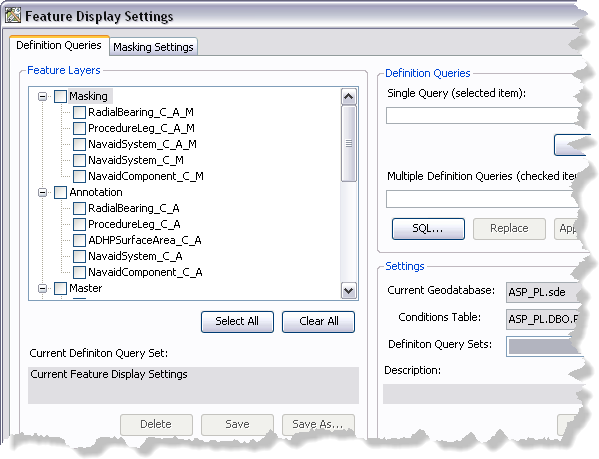
- If necessary, click the Definition Queries tab.
- Click the Definition Query Sets drop-down arrow and choose the definition query set you want to update.
- Click Load.
- In the Feature Layers list, click a feature layer for which you want to change the definition query.
- Change the query as necessary.
- Click Save.
A message appears notifying you that the definition queries you want to save have not been applied to the map or verified.
- Click Yes to continue with the saving process.
A message appears asking if you want to overwrite the existing definition query set.
- Click Yes.
The Definition Queries dialog box appears.
- If necessary, change the description in the Edit the query set description (if necessary) text box.
- Click one of the following: Update or Keep original.
- Update replaces the original description with the modified one.
- Keep original keeps the original query set description.
The Saving Query Set dialog box appears.
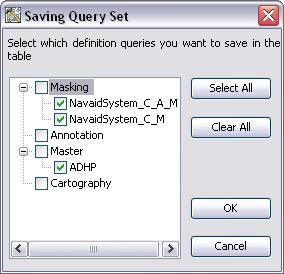
- Check the check boxes next to the layers that have had their definition queries updated in the Saving Query Set dialog box to determine which definition queries you want to append to (or change) in the existing definition query set.
- Click OK.
The Definition Queries tab appears. All the feature layers that have been updated now appear in bold, blue text.
- Click the Close button
 to close the Feature Display Settings dialog box.