Disponible con licencia de Production Mapping.
You can replace a definition query for a single layer. This allows ArcMap to limit features displayed for a specific chart.
- Inicie ArcMap.
- Add the Feature Display Settings tool in ArcMap by doing the following:
- On the main menu, click Customize > Toolbars > Customize.
The Customize dialog box appears.
- Click the Commands tab. In the Categories list, choose Production Cartography.
- In the Commands list, choose Feature Display Settings.
- Drag the Feature Display Settings tool
 onto any toolbar.
- On the main menu, click Customize > Toolbars > Customize.
- Click the Feature Display Settings button .
The Feature Display Settings dialog box appears.
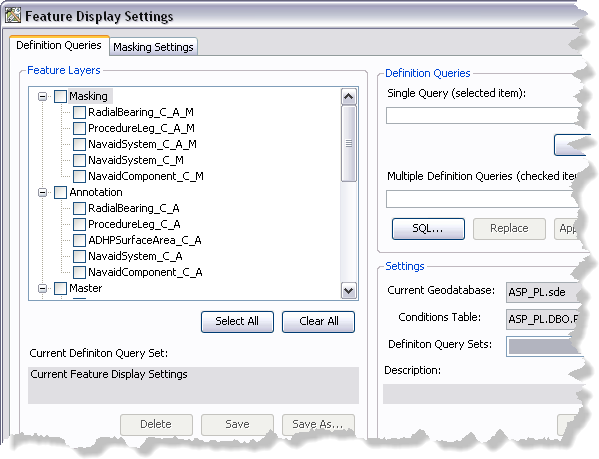
- If necessary, click the Definition Queries tab.
- In the Feature Layers list, click the name of the feature layer for which you want to define the definition query.
- Click SQL.
The Define Query Expression dialog box appears.
- Modify the query as needed.
- Click Verify.
The Verifying Expression message box appears and indicates whether or not the expression is valid.
- Click OK to close the message box.
- Click OK.
The Definition Queries tab appears with the modified query in the Single query (selected item) text box.
- In the Feature Layers list, check the check box next to the feature layer whose definition query you want to update.
- Click Apply.
A message appears indicating which feature layer definition query has been updated.
- Haga clic en Aceptar.
- Click the Close button
 to close the Feature Display Settings dialog box.