The Copy As Path command in the Product Library window and the file manager allows you to copy the path of a level in the Product Library tree view. You can then paste the path in one of the geoprocessing tool parameters in the Product Library toolset of the Production Mapping toolbox. For example, you may want to use the Check In File geoprocessing tool to check in one or more files into the product library. The Product Library Path to the Item parameter is the path to the particular Product Library tree view level where the files would be checked in; it is a double colon-delimited string (::) in this format: Solution Name::Product Class Name::Series Name::Product Name::Instance Name::AOI Name::File Name. Instead of manually typing the path, you can save time by using the Copy As Path command and pasting the path in the geoprocessing tool parameter.
- Start ArcMap.
- If necessary, open the Product Library window by clicking Customize > Production > Product Library on the main menu.
A tree view of the product library appears.
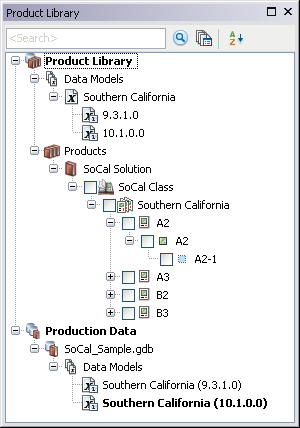
- Perform one of the following to copy a path:
To copy a path from any level of the product library in the Product Library window
Browse to the product library level you want to copy, right-click it, and click Copy As Path.
To copy a path of any level of the product library from the file manager
Click the Manage Files button at the top of the window, browse to the product library level you want to copy, right-click it, and click Copy As Path.
To copy a path of a file or instance database from the file manager
Click the Manage Files button at the top of the window, browse to the product library level, click the file for which you want to copy the path, right-click it, and click Copy As Path.
For example, if you need to add the path to the Product Library List Files tool, you can access the command from the Product Library window, and if you need to add the path to the Get Local Copy tool, you can access the command from the file manager.
You can now paste the path in any geoprocessing tool in the Product Library toolset.