Доступно с лицензией Production Mapping.
You must check a file in to the product library when you are finished modifying it.
When you check in the file, you can choose whether or not to increase the minor version number for it. If you choose to check the file in with a version number, it appears as a new version on the History pane of the file's properties. You can also choose to overwrite the current version of the file so the number does not increase.
Geodatabases cannot be versioned through the product library. If you are checking in a production database that is associated to a product, you need to choose the Overwrite current version option. This prevents the product library tables from becoming too large. If you need to version the production database, use SQL Server Express .mdf files and the versioning tools within многопользовательская база геоданныхs.
- Запустите ArcMap.
- If necessary, open the Product Library window by clicking Customize > Production > Product Library on the main menu.
A tree view of the product library appears.

- Click the Manage Files button
 on the Product Library window.
The file manager appears.
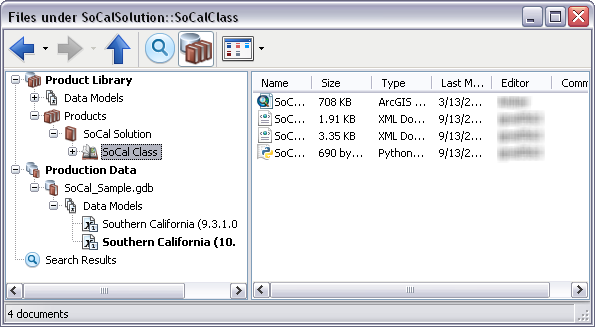
- Navigate to the file.
-
Right-click the file and click Check In Document.
If conflicts are detected while you are checking in, the Resolve Conflicts dialog box appears.
If there are no conflicts, the Check In dialog box appears, and you can proceed to step 7.
- If necessary, choose an option for resolving the conflicts and click OK.
- Choose an option for versioning the file.
You can choose to renumber the version or overwrite the current version. Geodatabases cannot be versioned through the product library. If you are checking in a production database, you need to choose the Overwrite current version option.
- If necessary, type a new value in the Major text box.
- If necessary, type a new value in the Minor text box.
- If necessary, type a new value in the Revision text box.
- If necessary, type a description of the changes you have made in the Comments text box.
- To keep the file checked out, check the Keep Checked Out check box.
- If you do not want to keep a copy of the file on your machine, uncheck the Keep Local Copy check box.
- Нажмите ОК.
The file is checked in.