在 Advanced 许可等级下可用。
The Change Reporter tool allows you to find changes made to individual feature classes or an entire geodatabase between specified dates or between different versions. The changes reported are additions, modifications, and deletions made in feature classes, tables, and data-driven elements that impact one or more charts. Once found, these changes are automatically committed to the Reviewer table for further examination. The feature classes and tables to be analyzed by the Change Reporter tool are stored in preferences, or saved sets of settings that include the instances to be evaluated and, optionally, any supplementary areas of interest to be used in the analysis.
This tool can only be run on Aviation production databases that have versioning and archiving enabled. Therefore, it can only be run on an 桌面地理数据库 or an 企业级地理数据库.
- 启动 ArcMap。
- Make sure that the production properties are set correctly.
Properties include the product library workspace, production database workspace, Data Model Version, and Instances Maintained. The Data Model Version needs to be set to an AIS-based data model.
- 在下面的其中一个项目中启动检查器会话:
- On the main menu, click Customize > Toolbars > Aviation Data Management.
- Click the Change Reporter button
 on the Aviation Data Management toolbar.
The Change Reporter dialog box appears.
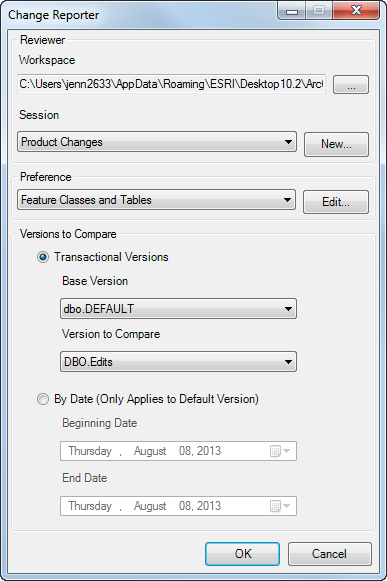
- Click the ellipsis button (...) next to the Workspace field to choose a Reviewer workspace.
- Choose a Reviewer session to report Change Reporter results by doing one of the following:
To use an existing Reviewer session that does not have Change Reporter records
Click the Session drop-down arrow and choose a session name.
To create a new session
Click New to create a new session, type a name for the session in the Enter Name text box on the New Session Name dialog box, and click OK.
- Click the Preference drop-down arrow and choose the settings to run on the production database.
- Choose an option for comparing the production database at different points in time.
- Transactional Version—Compares the parent and child versions of the production database to find records that have been modified. The base version is typically the parent (Default) version of the production database, and the Version to Compare is the child version.
- By Date (Only Applies to Default Version)—Searches the Default version of the production database for records that have been modified within the specified date range.
- Configure the comparison option.
To compare transactional versions
Click the Base Version drop-down arrow and choose the parent version of the production database. Click the Version to Compare drop-down arrow and choose the production database child version to be compared to the base version.
To compare the Default version using a date range
Click the drop-down arrow in the Beginning Date field and choose the start of the date range. Click the drop-down arrow in the End Date field and choose the end date for the date range.
- Click OK to start processing.
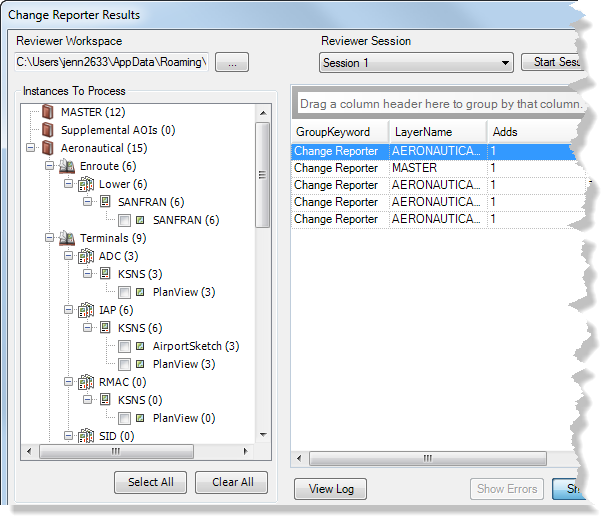
A progress message appears. The Change Reporter Results dialog box appears when the processing is complete.
The Instances To Process tree view shows the differences based on the master features, solutions, product classes, series, charts, and instances affected. The number of changes found appears in parentheses next to each node. The table illustrates the change types that have been reported and the quantity for each.
- Click Close on the Change Reporter Results dialog box.
The Change Reporter Results and Change Reporter dialog boxes close.
- 单击确定。