在 Standard 或 Advanced 许可等级下可用。
获得 Production Mapping 许可后可用。
Production Mapping provides several functions for working with multipart features. 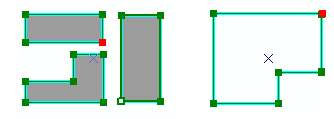
One way you can work with multipart features is to create a new feature that has the same geometry and attribute values as the part that is currently selected. For instance, rather than having three polygons as part of a single feature, you can convert one of the polygons to a single feature. This allows you to remove the part from the rest of the feature but still keep it in the map. When a feature is created this way, it retains the attribute values from the multipart feature, except for metadata items such as length and area.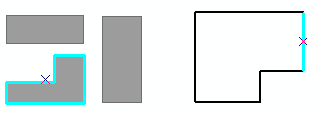
Converting part of a multipart polygon to a feature creates a new feature with the geometry of the selected part. The geometry of the part is also removed from the original multipart polygon. The new feature has the attributes of the multipart polygon. For example, if you have a multipart island chain feature and convert one of the parts to a feature, the selected island would become a new island feature, and the part would be removed from the original multipart island chain feature.
- 启动 ArcMap。
- 如有必要,可在地图中加载数据。
- 在主菜单上,单击自定义 > 工具条 > 生产编辑。
- 单击生产编辑工具条上的启动生产编辑按钮
 。
。
- Select a multipart polygon or line feature.
- Click the Edit Vertices button
 on the Production Editing toolbar.
- Right-click a node on the feature and click Convert Part To Feature.
The selected part becomes a separate feature.