获得 Production Mapping 许可后可用。
The Cut Features tool allows you to perform Discard Clip, Preserve
Clip, or Split operations based on the feature classes you have
selected within your data frame. The features you select are
considered the cut features, and their geometry is used to perform
the selected operation on the target features. Target features are
any features in the target layers that have a spatial relationship
with the cut feature. These feature classes are updated during the
selected operation. You can also choose which target features are
affected by the operation you select.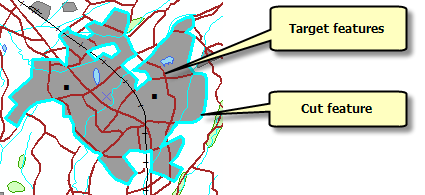
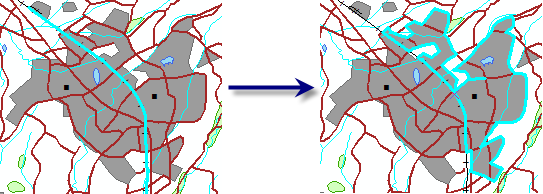
The Cut Features tool uses the selected cut feature's geometry to split the selected
target layers. Cut features can consist of either polygons or
polylines. Either polylines or polygons can be used as the cut
geometry. For a polyline to cut a polygon, it must
intersect the polygon boundary twice or be a closed polyline
completely contained within the polygon.
- 启动 ArcMap。
- 如有必要,可在地图中加载数据。
- 在主菜单上,单击自定义 > 工具条 > 生产编辑。
- 单击生产编辑工具条上的启动生产编辑按钮
 。
。
- Select the features you want to use for your cut features.
- Click the Cut Features button
 on the Production Editing Advanced toolbar.
The Cut Features dialog box appears. All features that intersect, contain, or are contained within the selected cut features are included in the list in the Target area.
- Choose Split in the Operation area.
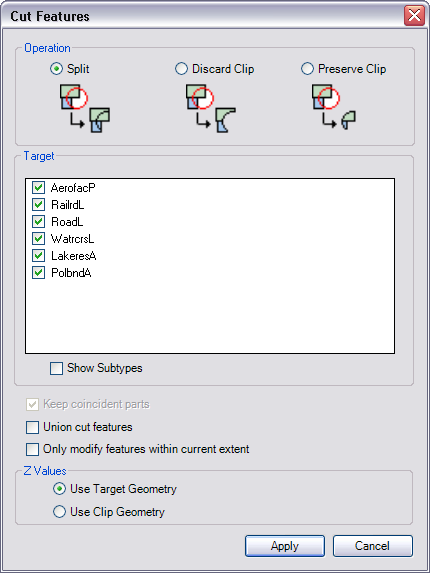
- On the list in the Target area, check the check boxes next to the target layers to be affected by the operation.
- If you want to choose the exact subtypes for use with the Cut Features tool, check the Show Subtypes check box and check the check boxes next to the subtypes to be affected.
- If you want to unite all the features before splitting the
underlying features, check the Union cut features check box.
The Union cut features check box is available when the cut features are polygons. When only line features are selected, the union is automatically performed before the split.
- If you do not want features outside of the current extent to be
split, check the Only modify features within the current extent check box.
When the Only modify features within the current extent check box is checked, features that are completely within the current extent or overlap the current extent are affected by the Cut Features tool.
- If you are using z-enabled features, choose an option in the Z
Values area.
- Use Target Geometry—This method uses the z-values from the feature that is split or clipped. Where the feature has been clipped, the vertex has a z-value that is interpolated from the original z-values defined for the vertices on the feature. For instance, if a line feature is split in the middle, the vertex on the clipped ends would have a z-value that is also in the middle of the split feature's original z-values. If the two z-values are 10 and 20, the z-values at the clipped ends would be 15.
- Use Clip Geometry—This method uses the z-values from the selected cut feature. Where the feature is clipped, the vertex inherits the selected cut feature's z-value. For example, if a polygon is clipped, and the cut feature has z-values of 50 for all its vertices, the vertices created on the feature that is split or clipped are going to have a z-value of 50.
- Click Apply.
The target feature is split.
- Click Cancel to close the Cut Features dialog box.