ArcGIS Desktop

  • ArcGIS Pro
  • ArcMap

  • My Profile
  • 帮助
  • Sign Out
ArcGIS Desktop

ArcGIS Online

专为贵组织打造的制图平台

ArcGIS Desktop

全面的专业性 GIS

ArcGIS Enterprise

面向企业的 GIS

ArcGIS Developers

用于构建位置感知应用程序的工具

ArcGIS Solutions

适用于行业的免费模板地图和应用程序

ArcGIS Marketplace

获取适用于组织的应用程序和数据

  • 文档
  • 支持
Esri
  • 登录
user
  • 我的个人资料
  • 登出

ArcMap

  • 主页
  • 入门
  • 地图
  • 分析
  • 管理数据
  • 工具
  • 扩展模块

Unsplitting connected polylines

获得 Production Mapping 许可后可用。

The Unsplit Connected Polylines tool is used to unsplit connecting features. Only features that are touching endpoint to endpoint and have the exact attribution on editable fields are unsplit. You can use this tool to merge features that are in the same network or create a polyline feature from two separate line features. For instance, you can create a single road feature using nearby roads that have similar attributes.
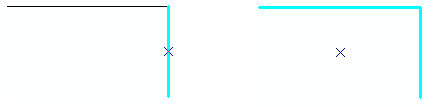
Example of two lines that have been merged into one
Two roads are merged into one feature
  1. 启动 ArcMap。
  2. 如有必要,可在地图中加载数据。
  3. 在主菜单上,单击自定义 > 工具条 > 生产编辑。
  4. 在主菜单上,单击自定义 > 工具条 > 高级生产编辑。
  5. 单击生产编辑工具条上的启动生产编辑按钮 Production Start Editing。

    注:

    使用启动生产编辑工具开始编辑会话时,系统将自动显示管理要素和创建属性、更新属性或元数据属性窗口。

    提示:

    如果开始编辑会话时未显示创建属性、更新属性或元数据属性窗口,请单击管理要素窗口上的显示/隐藏属性按钮 Show/Hide Attributes。

  6. Click the Unsplit Connected Polylines button Unsplit Connected Polylines on the Production Editing Advanced toolbar.

    The Unsplit Polylines dialog box appears.
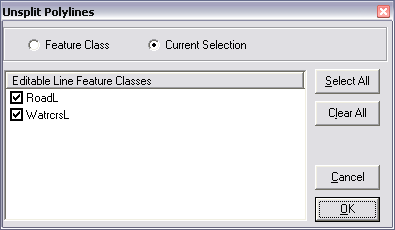
    Unsplit Polylines dialog box

  7. Choose either the Feature Class or Current Selection option.
    • Feature Class—Unsplits all the lines in the feature class
    • Current Selection—Unsplits the current editing selection only
  8. Choose the feature classes to unsplit in the Editable Line Feature Classes list.

    注:

    To choose all the feature classes, click Select All. To choose specific feature classes, click Clear All and check the check boxes next to the layers you want to unsplit.

  9. Click OK.

    A message appears when the unsplit connected features task is complete.

  10. Click OK.

    注:

    If z-enabled line features are snapped in x,y but have different z-values, they will not be merged.

相关主题

  • Intersecting lines
  • Splitting features using the Cut Features tool
  • Splitting line features

ArcGIS Desktop

  • 主页
  • 文档
  • 支持

ArcGIS

  • ArcGIS Online
  • ArcGIS Desktop
  • ArcGIS Enterprise
  • ArcGIS
  • ArcGIS Developer
  • ArcGIS Solutions
  • ArcGIS Marketplace

关于 Esri

  • 关于我们
  • 招贤纳士
  • Esri 博客
  • 用户大会
  • 开发者峰会
Esri
分享您的想法。
Copyright © 2021 Esri. | 隐私政策 | 法律声明