获得 Production Mapping 许可后可用。
Data items can be used to populate the table with information. Clicking Data Items on the Data Source tab causes the Data Items dialog box to appear.
The items that display in the list are those that have satisfied the filters defined on the Data Filters dialog box.
You can view the items on the Data Items dialog box as well as manage the table records.
In addition, you can also add and sort table fields from the Data Items dialog box the same way you are able to from the Data Filters dialog box.
- 启动 ArcMap。
- 如有必要,可在地图中加载数据。
- Verify that you are in layout view if necessary.
- Right-click the graphic table element and click Properties.
The Table Properties dialog box appears.
- If necessary, click the Data Source tab.
The Data Source tab appears.
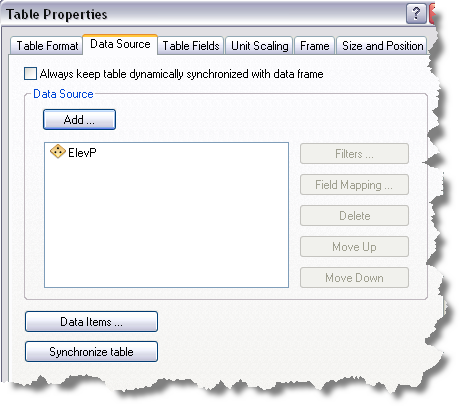
- Click Data Items on the Data Source dialog box.
The Data Items dialog box appears.

- Check the Show Field Aliases check box if you want field alias names to display in the table.
- To limit the number of items you want displayed, type the maximum number of data items you want returned in the Maximum number of data items text box.
- Perform any of the following as needed:
- To copy a cell, right-click an operator or filter type cell and click Copy Cell.
- To copy a row, right-click a row and click Copy Selected Row.
- To delete a row, right-click a row and click Delete.
- To sort a row, right-click a row and click Move Up or Move Down.
- Click OK.
The Table Properties dialog box appears.
- Click OK.