You can create custom calculations for your report using the Fusion Report Designer. The calculation types are single cell calculations and batch calculations.
Single cell calculations
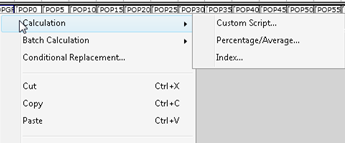
- Custom Script - Create any type of calculation including combining multiple variables.
- Percent/Average - Create percentages and averages from existing variables.
- Index - Build index values based on a national average of 100.
Batch calculations
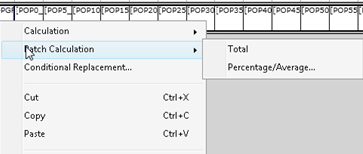
- Total - Creates an aggregate total of one more selected cells. A cell is added at the bottom of the selected cells.
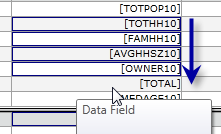
- Percentage/Average - Creates a percent or average calculation to the right of a selected cell variable.
-
To create a custom calculation, click on the desired cell, click Calculation and click Custom Script.
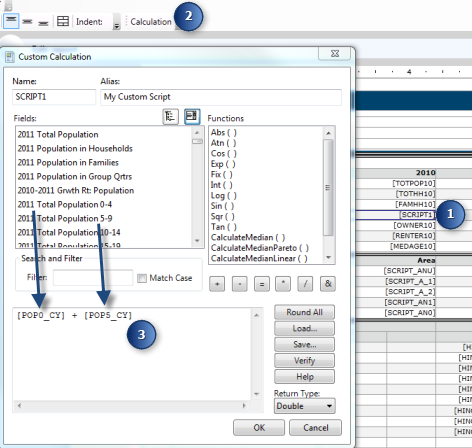
The Calculated Field Setup dialog box appears where you can create complex custom variables. You can verify, save and load calculations in other custom reports.
You can generate custom variables by creating calculations. The available variables to calculate can be selected from the standard list of Business Analyst variables or any custom variables you create using the Custom Data Setup tool. This dialog box acts like the standard field calculator in ArcMap. As a default, this variable name is SCRIPT but can be changed.
- To change the variable names, type the desired name into the Field Name dialog box.
- For example, to create a new age range of 0-9 for Current Year Total Population, click the desired cell location.
- Click Calculation in the main menu and click Custom Script.
A dialog box appears where you can create your new custom variable.
- From the Fields list, select Current Year Total Population 0-4 and click +.
- Select Current Year Total Population 5-9 and click Apply.
The sample calculation looks like this: [POPU5_CY] + [POP5_CY]
Calculate percentages and averages
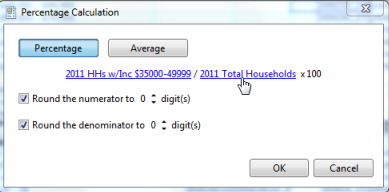
To calculate percentages and averages, drag the variable for which you want to calculate a percentage or average into the cell. This calculation considers the selected variable as the numerator. The denominator will be selected automatically. Both the numerator and denominator can be edited as described below.
The Percentage Calculation dialog box allows you to select variables for your numerator and denominator. For a percentage, the calculation will multiply by 100. Averages are shown as _A and percentages are shown as _P.
An index estimates the propensity to find a particular variable as compared to a base with a value of 100 being average. If a variable has an index value of 100, the percentage of that variable is the same as the base. Therefore, a value of less than 100 indicates that the target variable represents less than average (compared to the base), and a value greater than 100 indicates that the target variable is higher than the base. An index of 725 means that this variable is 7.25 times more likely to appear than the average in the base profile. An index is calculated by dividing the target percent composition by the base percent composition and multiplying by 100.
For example, if you were trying to determine the likelihood of households spending money on the Consumer Expenditure variable Children's Apparel in your county compared to the U.S. average, an index would give that propensity. An index of 220 for Children's Apparel would mean that households in your county are 2.2 times more likely to purchase children's apparel than the United States as a whole, where the United States would represent the base.
The dialog box displays only variables that are indexable from the standard Business Analyst dataset or any custom variables you have included through Custom Data Setup by creating your own Business Analyst Dataset (BDS). Any variable that is selected from the standard Business Analyst dataset will also have the national average automatically selected and displayed on the dialog box.