The Customer Setup wizard helps you prepare your own customer data.
It is important to note that for Business Analyst to analyze your customers, each one must be uniquely identified. You need to have a field in your customer database that has a unique name or number for each customer.
- Tabular data—Choose this option if your customer data is in a tabular format such as a spreadsheet or .dbf file.
- Map-ready data—Choose this option if your data is contained in a standard ArcGIS file format such as a shapefile or geodatabase.
- Create an empty layer—Choose this option to create an empty customer layer so that you can manually build your customer attribute table and place locations on the map.
- Enter customers' addresses—Choose this option to manually add customer addresses one at a time and create a customer layer.
- XY/GPS data—Choose this option to add customer locations by longitude (x) and latitude (y) coordinates in decimal degrees and create a customer layer.
Run Address Coder—Choose this option to create a customer layer while appending additional demographic attributes during the geocoding process or when using advanced selection options. See the Address Coder help help for more information.
Confirm that the analysis extent is set as you want. Any layer added to the map while an extent is active will be associated with that analysis extent.
After the customer layer has been created, a File Geodatabase of your data is created and stored in the My Output Data\Projects\Your Project\CustLayers folder.
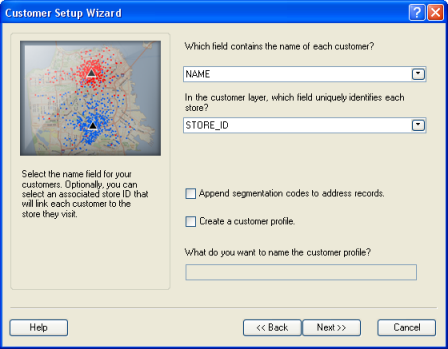
For users with a Business Analyst Premium license, at the end of the Customer Setup wizard, an option to create a customer profile using Tapestry segmentation data is available.
- Append segmentation codes to address records—A Tapestry segmentation code is appended to each record of the attribute table in the customer layer. Using the block group code, obtained during the geocoding process, Business Analyst appends the associated dominant Tapestry code of the block group. The dominant Tapestry code is defined as the Tapestry segment with the highest number of households in a geography.
- Create a customer profile—Choose this option to create a profile that can be used in the target marketing reports, charts, and maps.
Learn more about creating profiles.
Feedback on this topic?